Published
·
5 min
read
Open Graph Images: Why Your Links Look Broken When Shared
Someone shares your link and the preview is blank or shows the wrong logo. That is Open Graph doing nothing. Here is how share previews work, the right image size, and how to set one in Framer or Webflow.
TL;DR
Social and messaging apps do not read your page. They read a handful of Open Graph meta tags and build a card from those.
No tags means no control. The app grabs any image it can find, or shows a bare link.
Use one image at 1200 x 630 pixels, under 8 MB, at a URL that loads without a login.
Previews are cached. After a fix you have to force a refresh in each platform's debugger, or the old card keeps showing.
Framer and Webflow both expose this in page settings. It takes about ten minutes for a small site.
The problem is your meta tags
You send your website to a prospect on WhatsApp. The message shows a grey box, or your street address pulled from the footer, or a stock photo from three sections down the page. The site itself is fine. The card is not.
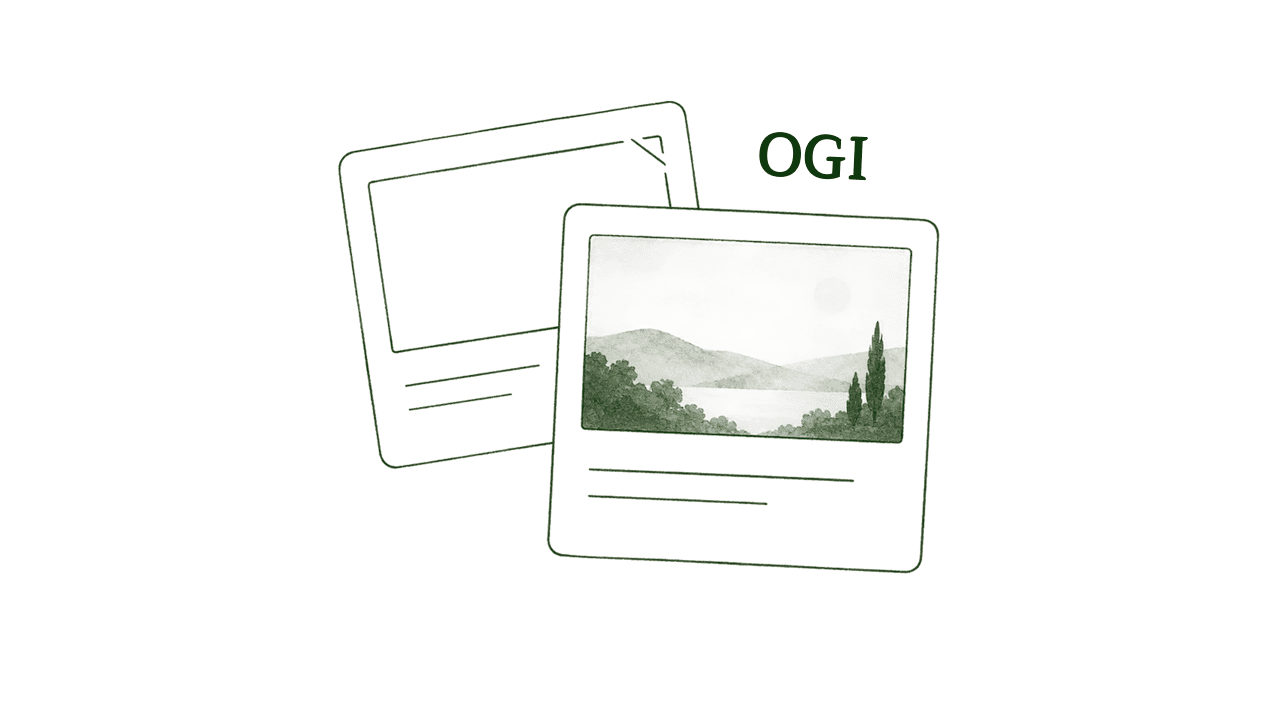
That card is built from Open Graph tags. When an app receives a link, it fetches the page, reads a small set of tags in the head, and renders a preview from what it finds. If the tags are missing, it guesses. Guesses look like accidents.
Open Graph came out of Facebook in 2010 and is now the shared standard across Facebook, LinkedIn, WhatsApp, Messenger, Slack, Discord, iMessage and most others. The full list of properties is in the Open Graph protocol specification.
The four tags that do the work
You need four, and a site builder will handle them for you:
og:titleis the headline on the card. Usually your page title, sometimes shorter.og:descriptionis one or two lines underneath. Often the same as your meta description.og:imageis the picture. This is the one people notice.og:urlis the canonical address of the page.
X reads Open Graph but also supports its own twitter:card tags. If you set both, X uses the more specific ones. If you only set Open Graph, X falls back to it, which is usually good enough.
Get the image size right once
Use 1200 x 630 pixels. That is a 1.91:1 ratio, and it is what the large card format expects on every major platform.
Meta's own guidance on link share images sets the floor at 200 x 200 pixels and the file size ceiling at 8 MB, and recommends at least 1200 x 630 for high-resolution screens. Below 600 x 315, you get the small square card instead of the wide one, which is easy to scroll past.
Platforms crop differently, so keep anything important away from the outer edges. If you add text to the image, keep it to a few large words. Card previews are usually seen at thumbnail size on a phone.
Why your fix does not show up
You upload a new image, republish, share the link, and the old preview appears again. Nothing is broken. The platform cached it.
Every platform stores the card it built the first time it saw your URL, keyed to that URL. Until the cache clears, it serves the old version, sometimes for days. Forcing a refresh is the fix:
Facebook and WhatsApp: use Facebook's Sharing Debugger and click Scrape Again.
LinkedIn: paste the URL into the LinkedIn Post Inspector.
X: run the URL through the Cards validator.
If a platform refuses to update, adding a harmless query string such as ?v=2 gives it a URL it has never seen, so it builds the card from scratch. Use that for a test, not as your permanent share link.
Setting it in Framer
Framer keeps this in the page settings panel rather than on the canvas.
Open the project and go to the page settings for the page you want.
Set the Title and Page Description. These feed both search results and the share card.
Upload a Social Image at 1200 x 630.
Publish, then refresh the cache in each debugger.
Site settings hold the defaults and page settings override them, so set a sensible site-wide image first and then override the pages that matter, such as your home page, services and case studies. Framer documents the flow in its help article on titles, descriptions and social images.
For CMS pages, point the social image at an image field in the collection. Each blog post or case study then gets its own card instead of sharing one generic graphic.
Setting it in Webflow
Webflow has a separate Open Graph section.
Open page settings and find the Open Graph section.
Fill in the Open Graph title and description, or tick the option to reuse the SEO title and meta description.
Add the Open Graph image URL. Upload the image to your assets first and use that link.
Publish, then refresh the cache.
For collection pages, bind the fields to the collection so every item generates its own card. Webflow covers the settings in its guide to controlling social shares.
A ten-minute check for a small site
List the pages people actually share. For most service businesses, that is the home page, two or three service pages, the contact page and anything you post about.
Create one 1200 x 630 template in Figma and export a version for each page. Keep the type large and the layout consistent.
Load the images, set the titles and descriptions, and publish.
Run every URL through the Facebook and LinkedIn tools and check the card.
Send yourself one link on WhatsApp as a final sanity check.
Frequently asked questions
Do I need a different image for every platform?
No. One image at 1200 x 630 covers the large card format everywhere. Platform-specific sizes exist, but for a small business site, the gain is not worth the maintenance.
Does this affect my Google rankings?
Open Graph tags are for social and messaging previews, not for search ranking. They do affect whether someone clicks a link a colleague sent them, and that traffic counts too.
My preview still shows the old image. What now?
Clear the cache in the relevant debugger first. If it persists, confirm the image URL loads in a private browser window, has no login in front of it, and sits under 8 MB.
Can I use my logo as the share image?
You can, though a logo on a plain background at 1200 x 630 usually leaves a lot of empty space. A page-specific image with a short headline reads better at thumbnail size.
What about pages with no image set at all?
The platform falls back to whatever it can scrape, which is unpredictable, or shows a plain text link. Setting a site-wide default is the quickest way to stop that.